All posts by smarc

How to: Purge, Flush or Delete Postfix Queue, or a Single Email

How to: Purge, Flush or Delete Postfix Queue, or a Single Email

Written by 
Date: 2012-04-25 14:53:30 00:00

To flush or purge the postfix mail queue, just enter this command

postfix -f

But if you need to delete an individual email from the queue, you’ll first need to see the queue. Traditionally you use mailq this time we’ll use:

postqueue -p

And the output should show all messages in queue:

5642B4D8647* 1683500 Tue Jun  3 08:37:27  xxxxxx@xxxxxxx.com
                                         rrrrrrrrr@hotmail.com

9359B4D82B1* 1635730 Tue Jun  3 08:36:53  xxxxxx@xxxxxxx.com
                                         yyyyyyyy@hotmail.com

The first number is the message ID, if you only want to delete one of them, enter:

postsuper -d 5642B4D8647

That will only delete one email for the queue, that specific email you want to delete from it.

If you want to delete all deferred mails, you can use:

postsuper -d deferred

Source: How to: Purge, Flush or Delete Postfix Queue, or a Single Email

How to change the BIOS boot screen logo image on Lenovo Laptops

If you want to inject some branding to your Lenovo laptops by customizing the BIOS splash screen image then here is a quick tutorial on how you can do that. Table of contentsDownload the BIOS update utilityPrepare the imageFlash the image Download the BIOS update utility Download the BIOS Update Utility from the Lenovo support website and extract the files:…

Source: How to change the BIOS boot screen logo image on Lenovo Laptops

WindowsInternal.ComposableShell.Experiences.TextInput.InputApp.exe blocks : Windows10

WindowsInternal.ComposableShell.Experiences.TextInput.InputApp.exe blocks
by inWindows10

WindowsInternal.ComposableShell.Experiences.TextInput.InputApp.exe blocks

If I accidentally press Win+H, a keyboard will appear on the screen. When I close it, a ghost “window” stays in its place. Nothing is visible, but if I click with the mouse in that part of the screen, the visible window does not receive the event. It’s pretty infuriating and I can’t figure out how to disable this feature entirely. Does anyone know?

In a command prompt or powershell (admin):
reg add "HKLM\SOFTWARE\Microsoft\Windows NT\CurrentVersion\Image File Execution Options\WindowsInternal.ComposableShell.Experiences.TextInput.InputApp.exe" /v Debugger /d "%SystemRoot%\system32\systray.exe" /f
taskkill /im "WindowsInternal.ComposableShell.Experiences.TextInput.InputApp.exe" /t /f 
echo done

Undo:

reg add "HKLM\SOFTWARE\Microsoft\Windows NT\CurrentVersion\Image File Execution Options\WindowsInternal.ComposableShell.Experiences.TextInput.InputApp.exe" /v Debugger /f
echo done  

Obviously this will disable touch keyboard completely, but you can use OSK instead if ever needing it.

Disable Caps Lock Key – Win10

1. Press Windows+C to open the Windows Charm Screen-> Go to Search to open the Apps Search Field.
Now, just type regedit.exe in the search field.


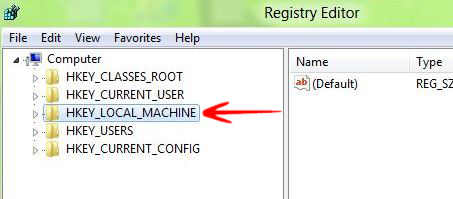
2. You will find an option on the left side of the registry editor calledHKEY_LOCAL_MACHINE. Expand it.


HkeyLocal


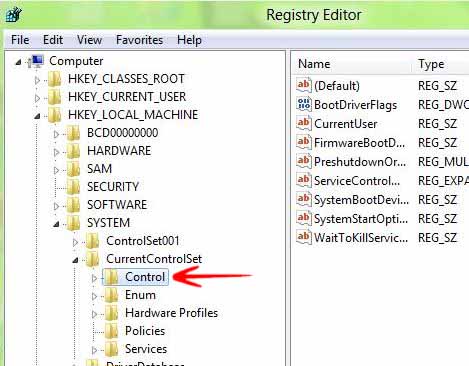
3. Go to SYSTEM and expand it.


4. Choose CONTROL and expand it


Control


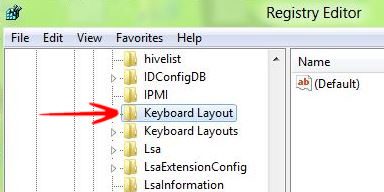
5. Choose KeyBoard Layout and expand it.

Keyboard Layout


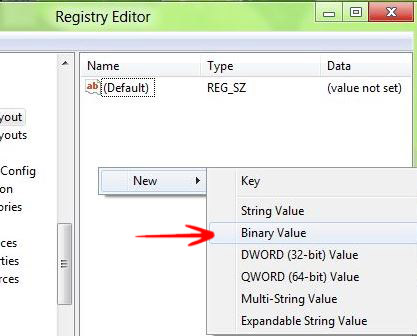
6. In the right side of the screen Right click-> Go to New-> Select Binary Value.


New Binary


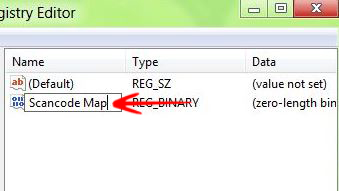
7. Name it Scancode Map.

Scannode Map


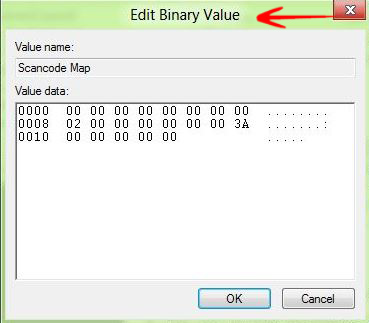
8. Double click on it and write the value 00000000 00000000 02000000 00003A00 00000000 and press OK.


New Binary Value


9. Close the Registry Editor and Reboot.

Source: Solved: Yoga 13 Caps Lock key – Lenovo Community