Downloading Windows Server 2019 & Features On Demand, Free – Direct Download Links (Microsoft Evaluation Center 180-Day Period, Extendable) – Real Network Labs
Windows Server 2019 Product Family: Features, Editions, Options and Versions Explained & Compared
Install ScanSnap s1300, s1300i, s1100 and s300 drivers on Linux – drivers included
FreePBX Contact Manager to Yealink Address Book
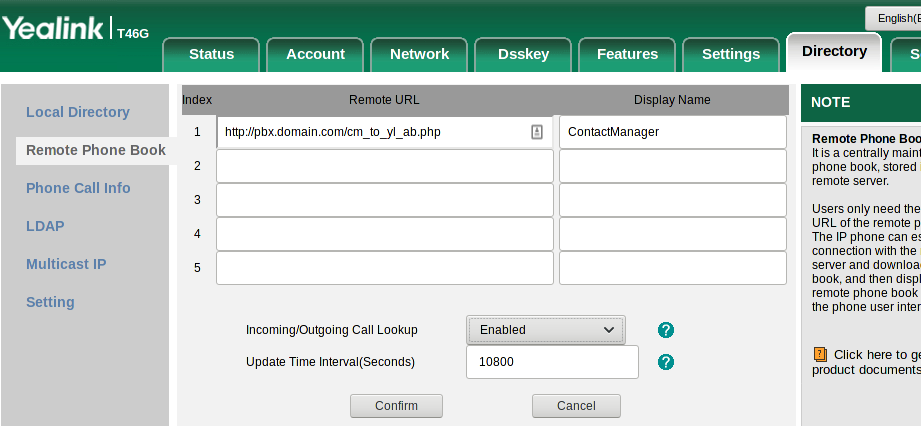
freepbx-helper-scripts/yl.php at master · sorvani/freepbx-helper-scripts · GitHub
Installation: Pear problem – FreePBX / Installation – FreePBX Community Forums
In case someone else happens across this question through a search it appears that there is a missing step depending upon how PEAR was originally installed (I just used the pkg available on Ubuntu). In order to fix this the PEAR DB must be installed/initialized:#pear install DBdownloading DB-1.7.13.tgz …Starting to download DB-1.7.13.tgz (132,246 bytes)…done: 132,246 bytesinstall ok: channel://pear.php.net/DB-1.7.13Just that simple! That should get you over the hump.
Source: Installation: Pear problem – FreePBX / Installation – FreePBX Community Forums
Schematic Stash
An ever growing collection of guitar amp schematics. Single Ended Amps Crate Crate V5 Epiphone Valve Junior Stock Valve Junior Hot Rod Valve Junior Fender Fender Champ 5F1 Fender Champ AA764 Fender…
Source: Schematic Stash
windows-itpro-docs/apps-in-windows-10.md at master · MicrosoftDocs/windows-itpro-docs · GitHub | https://github.com/
How to rotate and flip videos using Handbrake – IT Support Guides
How to rotate and flip videos using Handbrake
HandBrake is a free tool that’s available for Windows, Mac OS and Ubuntu that allows you to take a video in various formats and convert it to an MP4.
The steps below show how to rotate the video being processed.
Before beginning, you need to download and install HandBrake.
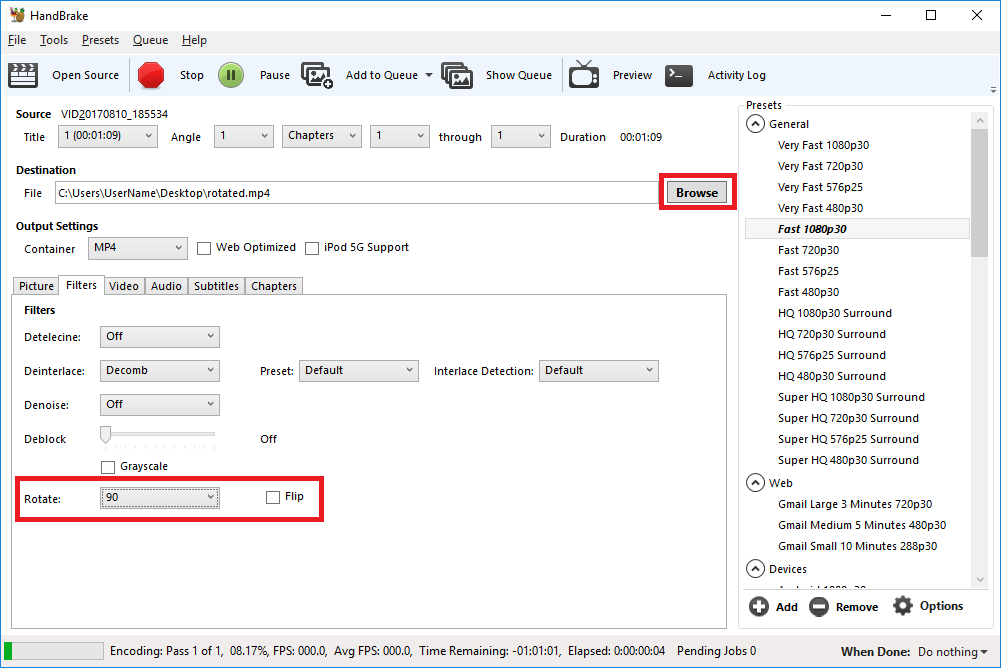
- Open HandBrake and load your video using the ‘Source’ button to select the video you want to rotate or flip
- Choose where to save the rotated video by clicking on the ‘Browse’ button to select where the converted file will be saved.
- Open the ‘Filters’ tab
- The ‘Rotate’ option allows you to choose four different options
- 0 – do nothing
- 90 – rotate to the right
- 180 – turn upside down
- 270 – rotate to the left
- Choose the rotate option you require
- Click ‘Start Encode’ to begin
- At the bottom of the window you will see the progress
Help! It didn’t work
Try the manual way of rotating, by applying manual filters.
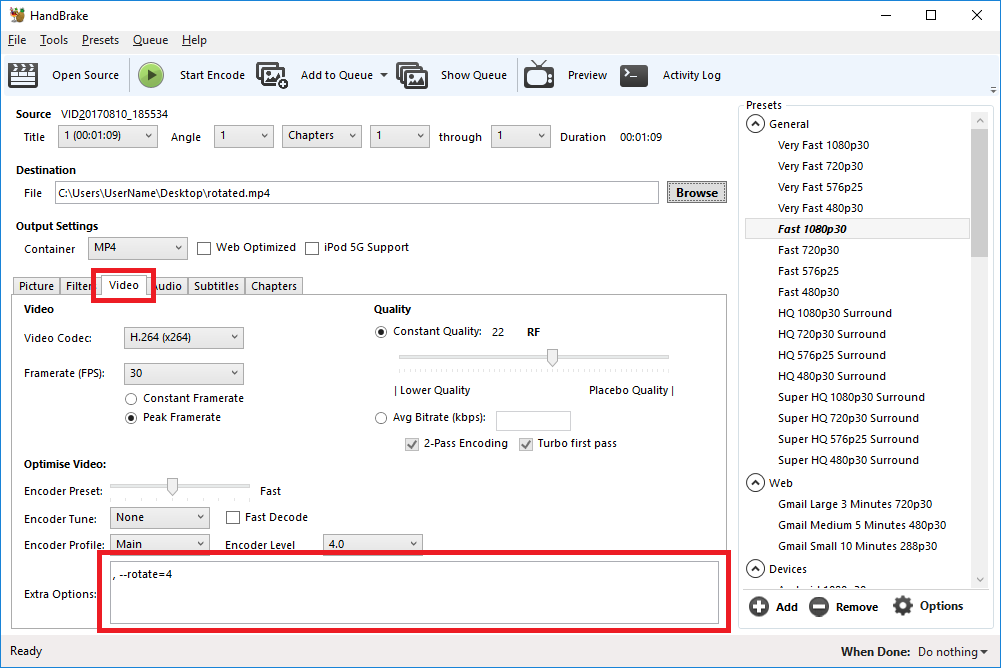
- Open the ‘Video’ tab
- We’ll be working with the ‘Extra Options’ setting.
- Once you have the required command entered, click ‘Start Encode’ to begin.
Rotate 90 degrees clockwise
To rotate 90 degrees clockwise, enter the following command into the ‘Extra Options’ setting:
, --rotate=4Rotate 90 degrees anti-clockwise
To rotate 90 degrees anti-clockwise, enter the following command into the ‘Extra Options’ setting:
, --rotate=7Rotate 180 degrees (upside down)
To rotate 180 degrees so that the video is upside down, enter the following command into the ‘Extra Options’ setting:
, --rotate=3Other options?
The official HandBrake documentation has more detail on what other options are available.
1 : x flip
2 : y flip
3 : 180 degrees rotate (also the DEFAULT)
4 : 90 degrees rotate (clockwise)
5 : 90 degrees rotate + y flip
6 : 270 degrees rotate + y flip
7 : 270 degrees rotate
Source: How to rotate and flip videos using Handbrake – IT Support Guides